


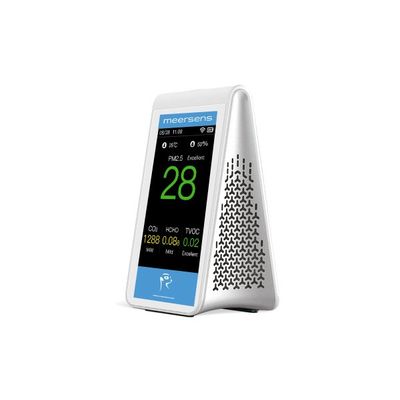
Meersens - Model mBox Guardian MMG-174 -Air Quality Monitor
Thanks for choosing our Air Quality Monitor mBox Guardian MMG-174. There are high precision sensors inside it and mainly used for indoor to detect the PM2.5, Carbon Dioxide (CO2), Formaldehyde (HCHO), TVOC, Temperature Humidity at the same time. It provides an accuracy data for your indoor air quality, and then take a good protection for your stakeholders. Here is a Wi-Fi function and help you check its real time data at anytime and anywhere on your cellphone via Meersens Pro App after Wi-Fi pairing.
After receiving an email with your login information and downloading the Meersens Pro application from the Apple or Android stores, you can begin the pairing process.
Attention: your network must be a 2.4 GHz Wi-FI network.* Before starting the pairing process, make sure that your phone is connected to the same network to which you are connecting the sensor to, that your phone and the sensor are both within 5 meters of the WIFI router, and that the device is charged.
*If the name of your Wi-Fi network does not indicate whether it is a 2.4 GHZ or 5 GHz network, you will need to change the frequency of your Wi-Fi or consult your network administrator if you are a professional.
- Move the sensor closer to your Wi-Fi router. Then, in the Meersens Pro app on your phone, go to the home page and scroll down to the “Sensors” section. Add a sensor by clicking on the “+” icon on the right.
- Select the model “MMG-174” in the dropdown list.
- Choose the name of the sensor to identify it more easily later (example: meeting room). To enter the serial number and the MAC address of your sensor, press the button on top of the sensor until the QR code appears and scan it. If you are unable to scan it, please enter the serial number and MAC address manually according to the product label.
- Select the sensor current location.
- Enter WIFI network credentials (name and password) at the Peering step. Warning: do not click on the “pairing” button until you have completed step 6).
- Press and hold the grey button on top of the sensor for more than 5 seconds. The Wi-Fi icon on the product’s screen should blink rapidly. Once the icon is blinking, press the “Pairing” button. Wait for the pairing process to complete successfully.
Your device is now paired. Click the “Declare New Sensor” button to complete the process. The first data will appear within the first 10 minutes.
Once paired, the sensor can be safely positioned more than 5 meters from the WIFI router.
(Please note that you may have to try the pairing step again if the first time was unsuccessful).