

Antero - Version CMMS -Work Order Management Software
Work order management, asset tracking, cost-analysis reports and more. Antero is designed to help you take control of your maintenance program and data.
Manage your CMMS data with Antero. Antero is designed to help users shift from corrective to preventive maintenance, leading to cost savings.
Antero can help reduce downtime caused by breakdowns, extend equipment life and can allow you to accomplish more when budgets are tight.
Antero will assist you with work order scheduling, inventory control, real-time data collection, historical data, cost and custom reporting.
Get equipment and asset tracking, work order management, meaningful reports and more with Antero Computerized Maintenance Management Software.
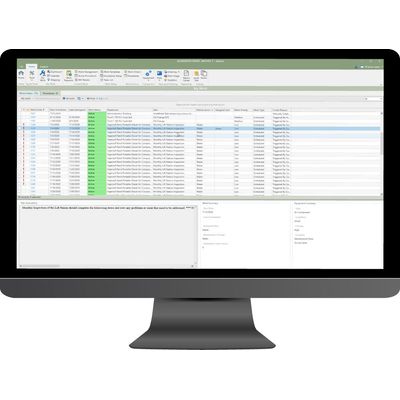
Maintenance managers have shared with us that one of their primary concerns is always “making sure that the work got done.” With Antero, not only can you schedule preventive maintenance tasks to create your work orders, but you can also track when the work is completed. This includes detailed information on when the work was scheduled, when it was completed, labor, parts and more.
Tracking equipment and assets is a core part of any maintenance program. With Antero, the Equipment section allows you to create comprehensive records on all of your equipment.
Enter as much detail as you need, including description, location, original value, vendor and warranty information and more. Enter consequence of failure and probability of failure numbers to calculate asset criticality.
Review work order Templates and Procedures that have been created for a piece of equipment, currently open work orders, maintenance history, in-service history and more.
- Create a comprehensive list of all your equipment and assets, including as much detail as you need.
- Calculate Asset Criticality.
- Attach documents, pictures, and hyperlink to websites.
- Review currently open work orders and a record of maintenance history.
- Quickly create corrective work orders.
Take control of your assigned work in the My Work section. Easily sort and organize assigned work orders and procedures. Quickly view and complete work with the Work Order Viewer tool.
View your Calendar, customize a Dashboard with useful information, or locate your equipment with Mapping. My Work ensures that all of the information necessary to get a job done is easily accessible for Antero users.
- Manage and complete your assigned work.
- Customize your Dashboard with important data.
- Access your Calendar to organize your work day/week.
- Quickly locate assets and equipment with Mapping.
Facility managers have identified that ensuring maintenance is getting done is a top priority. The Work Management section gives you all of the tools in order to ensure work orders and procedures are distributed, reviewed, and completed.
Easily create and schedule new preventative maintenance templates and procedures. Quickly identify and distribute new work orders or address work that needs attention. Custom statuses and indicators give you the information necessary to make decisions.
- Create and schedule work orders.
- Create and assign custom statuses to organize work.
- Distribute work to assigned users or Maintenance Groups.
- Review and complete work orders.
- Create and schedule Procedures for reoccurring tasks that require checklists or step by step instructions.
Antero includes numerous built-in stock reports. Drill down to gain a better understanding of your maintenance program.
While Antero features popular usage and cost reports, others are available as well, including employee and labor, parts usage, vendors and ordering and a variety of reports related to work orders and procedures. Custom reports are also available as a service through our technical support department.
- Antero offers numerous stock reports to let you see the most critical information about your maintenance program.
- Designate Memorized reports to quickly access your most important/frequently used reports.
- Stock reports allow for customization
Database
All data is stored in a database managed by the Pervasive PSOL database engine. Data is stored in an accessible. ODBC complaint format using a mix of Btrieve and SOL data access. Multiple databases can be created for use within the application and each database can contain multiple facilities.
Facility
A Facility represents the Locations and Parameters that are sampled to meet water treatment sampling requirements, internal process control and plant performance. A Facility includes tools for data entry, review, graphing and reporting.
In terms of database structure, a Facility is second in the hierarchy of the database. Facility is used to separate and maintain different lists of items, such as Locations. Location:Parameters. Formulas. Graphs and Reports. Facility can also be used to indicate Security settings and context. Multiple facilities may be created as needed for any database. Facilities may also be imported or exported from database to database as needed.
Security
A mix of database- and facility-level security is present to ensure that all users are properly defined and limited as required by administrative users. OperatorlO utilizes information from the Microsoft Windows operating system relating to the current user. In an effort to make the login process smooth and efficient. OperatorlO validates the current Windows user against a defined list of users and if successful, allows entry into the application.
Group definitions provide the ability for users to quickly set facility-level access for defined database users. Multiple groups can be created and managed to provide defined levels of access.
Location:Parameters
Location:Parameters are the unique combinations of Location name and Parameter name joined to form individual data points within the database. Data is stored for each Location:Parameterwith a date/time value in order to preserve database integrity. Data entry is performed for Location:Parameters either through the Data View application. Sampling Events section or Add Data feature. Data can also be imported in many ways, from SCADA LIMS. import or other external data sources.
Location:Parameters can be defined as either Hourly or Daily. Hourly Location:Parameters allow for data to be entered multiple times throughout the day. using up to 1 minute intervals for data storage. Daily data allows for Location:Parameter data entry to be performed once per day.
Lower and upper data entry limits can be defined for each Location:Parameter and provides users with the indication if unexpected values are entered. Visual indication of values outside the defined range is also provided when limits have been set.
Formulas
Formulas, user-defined or program-specific functions, can be written in order to generate data for Location:Parameters. Formulas can be written using standard mathematical operators as well as functions defined within the application. Location:Parameter data can be utilized in the calculation of data as needed. Formulas are available for use when attached to Location:Parameters to generate hourly or daily data. Formulas are also available for use within DataViews. Graphs and Reports.
Process Control
Treatment plant processes can be defined within the Waterapplication and can be beneficial in providing calculated information based on defined process sections. The Process Setup section allows users to create an entry for every treatment process employed at the facility. Processes can assist in the calculation of loadings, removals and other plant performance information based on dimensional information entered for each process section.
Simple and complex flow streams can be defined by identifying Locations where flow values can be added to or subtracted from the treatment process. Influent flow streams are required for proper calculation of data.
Process sections-clarifiers. tanks, basins, etc.. can be identified to allow for dimensional information to be entered as well as in and out of service history to be defined for the process. Size and volume information is required in order to properly calculate solids loading rates, surface and weir overflow rates.detention times, inventory, removals and more. History is maintained by identifying process sections and creating events to document and save times at which the section was in service or out of service.
Process Calculations can be created using internal formulas to calculate process data. Process Locations and Process Sections may be used to store the calculated data using specially generated Parameters and internal formulas. Internal Location:Parameters are displayed when the user previews the calculations that could be generated by the process section. Once created, the internal LocationParameters are available for use within the software.
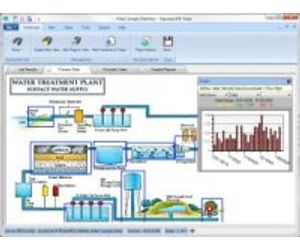
The Dashboard feature of the application allows users to customize their database by utilizing Views. Views can contain a mixture of Pages. Page options allow users to define background images, colors and other functionality options.
Pages allow users to define the following:
- HotSpots – HotSpots that link to DataViews, Graphs and Reports in the application as well as external files. HotSpot options allow for the user to set text, icon display and visibility options.
- Graph Containers – Graph Containers allow for users to display hourly and daily data as well as summarized monthly and yearly values for selected Location:Parameters. Graph styles available include horizontal and vertical bar charts, line and scatter point graphs.
- Gauge Containers – Gauge Containers allow for users to display single Location:Parameter data for a period of time in a linear-, speedometer- and dial-formatted gauge.
- Data Containers – Data Containers provide a data table display of data for the selected Location:Parameter for a specified period of time. Data is also summarized for the period and displayed for review purposes.
- Navigation Containers – Navigation Containers allow users to display links to external files.
Data Entry
DataViews allow users to define and manage all data stored in the database. By creating and maintaining unique views, users can group and place Location:Parameter information exactly as needed to satisfy data entry, calculation, collection and review needs. DataViews can provide discrete hourly and daily data as well as summarized yearly data at a glance. DataViews are reusable and capable of being customized with full-color and font options.
More Information
Output
Utilize Reports and Graphs to satisfy data output needs in Operator10. Unlimited reports can be prepared using stock, state and custom report templates. Stock and state-based reports can be prepared in a point-and-click interface allowing users the ability to quickly and easily produce high quality reports. Full custom reports are also available allowing users to customize the data to be reported as well as the report template. Full-color, 2D and 3D graphs can be prepared and output in a variety of chart formats.
More Information
Add-Ons/Utilities
Complete your usage of Operator10 with the available utilities and add-on features. Take advantage of standard features such as scheduled database backups, database maintenance tools, scheduled imports of critical data and much more. Add-on features, such as the OPC/DDE Interface, Audit Trail and DataPort handheld data entry device are available for purchase. The additional paid features help users to incorporate additional data source and data collection information as well as the ability to view historical actions taken within the application.
More Information