

Ape Software - Calibration Control Software
Calibration Control is a comprehensive calibration management software solution designed by Ape Software to streamline and enhance calibration processes. It operates on MS .NET 4.7.2 or higher, ensuring compatibility with systems meeting these requirements. The software offers flexible database choices including options such as MS Access and SQL Server, and requires admin or read/write privileges for proper functionality. Users must have access to specific account locations, typically managed by local IT settings. Calibration Control facilitates calibration tracking through features like Sign-In Mode activation, Calibration Due Reports, and report editing capabilities. With remote support, users can easily install, configure, and operate the software, including a free 30-day trial offering a fully featured demo. Technical support and additional programming services are also provided to cater to diverse problem-solving needs.Calibration Control version 9 and higher uses MS .NET 4.7.2. Therefore, if your computer can run .NET 4.7.2 or higher, then Calibration Control should run properly. Please review the complete .NET Framework System Requirements from Microsoft for more information.
- Operating Systems: Windows 10, Windows 11, Windows Server 2016 (64-bit), Windows Server (version 1709), and higher.
- * While Windows Home editions can be used for basic installations of Calibration Control, the Home editions should not be used when installing SQL Server locally or using SQL Server Synchronization Services.
- DOTNET Framework: .NET 4.7.2
- MS Access Database Drivers: If the Access database drivers are not installed, Calibration Control will not start (MS Access deployments only). These drivers, also referred to as the Office System Drivers: Data Connectivity Components, are compatible with most current versions of Windows. Your installed version of Microsoft Office and your computer version determine which database drivers will work for your system.
Newer versions of the drivers are available:Older version of the Access DB drivers:
- Brother Label Printer Drivers (32 bit only): The brother label printer drivers are normally included in the Ape Software install file. Therefore, these drivers are only required if Calibration Control is installed on a remote computer AND labels must be printed from a local machine.
- Processor: i7 or higher (suggested i9 for best performance)
- RAM: Minimum 16 GB of RAM (suggested 32 GB or higher for smooth operation of all your software)
- HD / SSD Space: (SSD recommended) 4.5 GB of hard-disk space minimum if the system requires the .NET version 4.7.2 framework
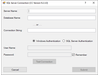
- Access or SQL: Calibration Control connects to an MS Access database (on client or network location) or a SQL Server database (2016 {SP3 or higher}, 2019, or 2022). SQL Server 2017 is End of Life and should no longer be used. MS Access is not required on the computer where Calibration Control is installed but it does make it easier to look directly at the database file, if desired.
- Access vs. SQL: The benefit of using MS Access vs. SQL is that Access is simple and that it usually does not require IT support. On the other hand, SQL Server is faster and MUCH more reliable. Therefore, if your organization is comfortable using SQL Server or will host with Ape Software, SQL Server is always the better choice. Access should be good enough for trial purposes.
- Client Application: Calibration Control is a Client Application that can be installed on a single or multiple Clients all using a single database (most common), installed on a File server (still runs on the client), or installed on a Terminal server.
- Shared Data and Files Folder: In multi-user mode(i.e. User Authentication enabled), no matter which database type is used, Calibration Control uses a central folder location (on file server for multiple users) and is usually the same place as the MS Access database. Regardless of where the Common Files Folder (CFF) is located, each user must have read/write privileges to this folder and must use the same drive mapping / path statement.
- Separate Program Files Folder: NEVER use the Program Files folder for any other purpose besides the placement of the Program Files. Do not place the Database or the Files Folder in the same location or below the Program Files folder. Do not place the Program Files folder in the same folder or below the Settings Folder.
From the perspective of each Client computer account, Calibration Control users require access to the following locations. Normally, these locations are available unless they have been locked down by local IT.
- Settings Folder: Read/write access to the Public Documents folders at C:\Users\Public\Documents\Ape Software\Calibration Control
- Program Folder: Read access the Program Files folder of wherever Calibration Control is installed. Using the default folder, by letting the installation program decide, is recommended.
- Data and Files Folders: Read/write access to the locations chosen for the Data Folder and the common Files Folders (e.g., Attachments, Reports (templates), and Labels (templates). By default, the Data and Files Folder is the same location as the Settings Folder.
- Registry: Read/write access to the registry location at HKEY_CURRENT_USER -> Software -> Ape Software.
Let us know if you need help with anything related to Calibration Control! We can share screens via remote support and help you download, install, configure, give you a tour, and answer questions while you sit back and watch.
Compatibility: Calibration Control versions 9.1 to current