- Home
- Companies
- M-Tech Software Inc.
- Software
- QuickCross and QuickFence - Geological ...
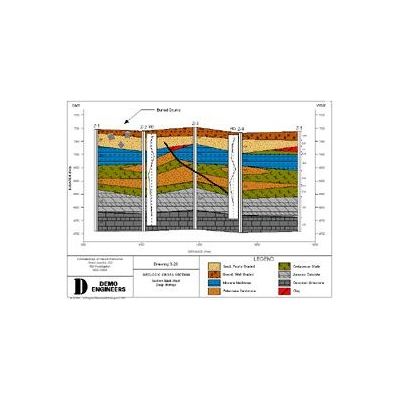
QuickCross and QuickFence - Geological Layer Data Modules Software
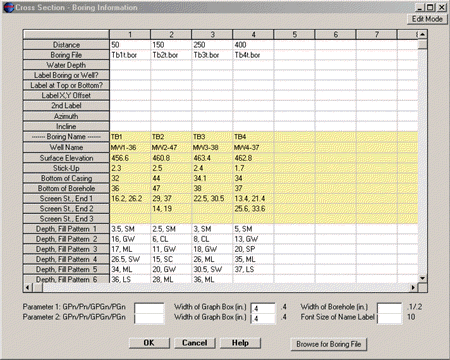
The data from QuickLog is easily imported into QuickCross and QuickFence. With a click of a button, you add borings to your cross section or fence list. You can also create cross sections or fence diagrams without using QuickLog by entering the geologic layer data directly into the editor. Below is the cross section data for 4 borings:
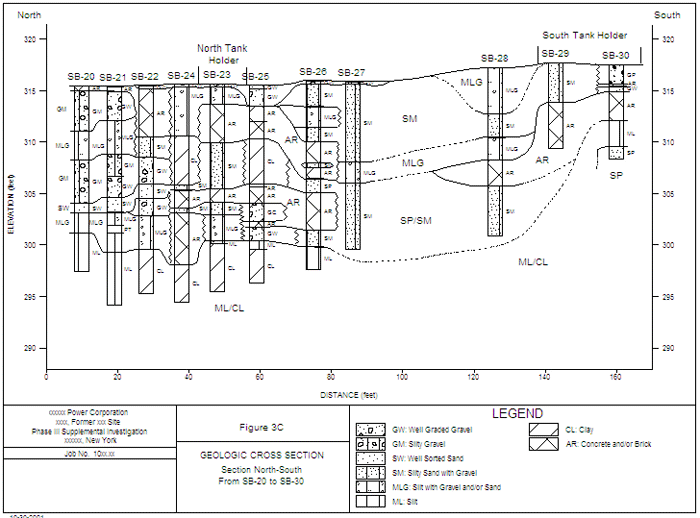
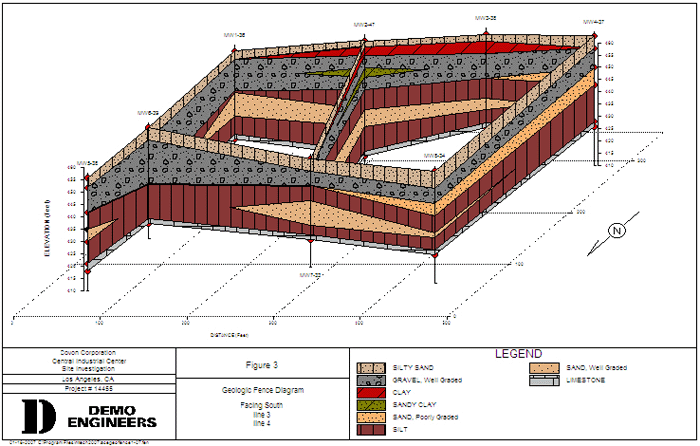
After two or more borings have been added to a list, you can immediately preview your cross section or fence diagram. Below is a cross section generated from the list above. Each geological layer is marked with its fill pattern abbreviation (ex. SM). In minutes, you have a basic cross section drawn perfectly to scale. Accomplishing this task in CAD would take hours.
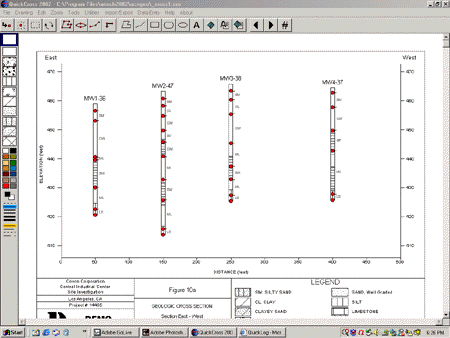
In addition to labeling the layers, you may choose to have them filled with a fill pattern inside the representation of the borehole:
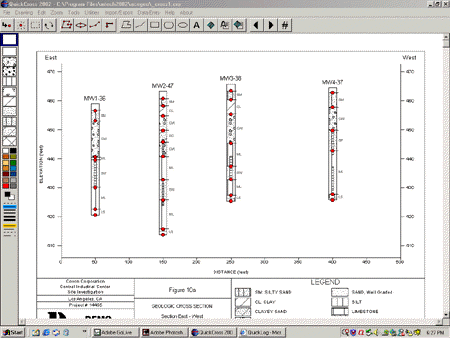
You also have the option of letting the program connect the geological layers using its artificial intelligence:
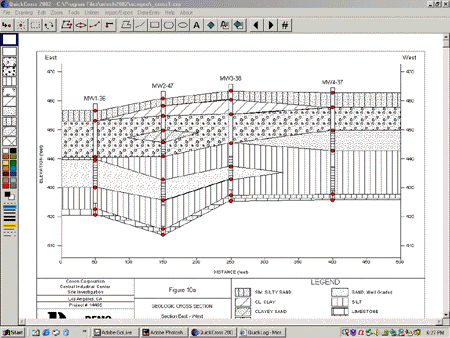
Drawing Tools
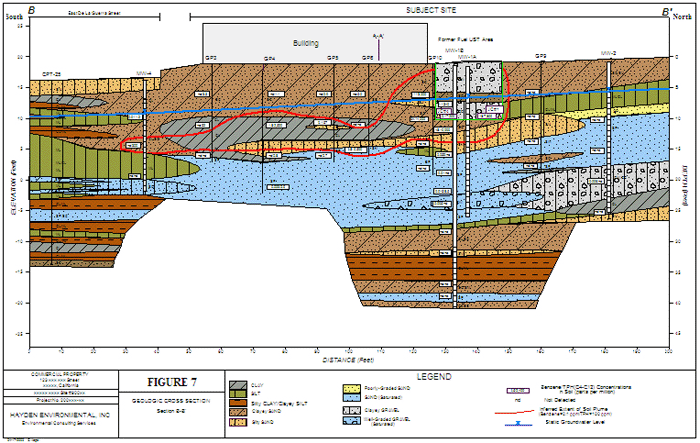
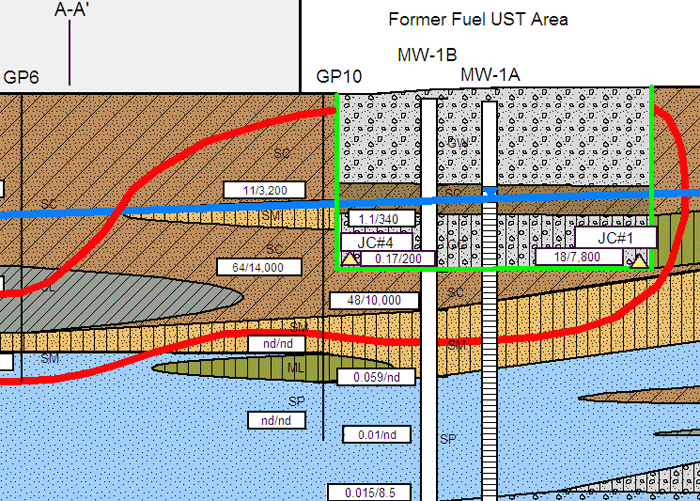
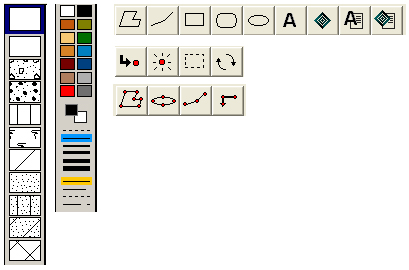
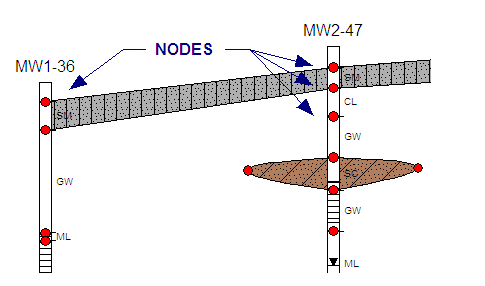
What really makes QuickCross/Fence outshine its competition are its drawing tools which enable you to manipulate the drawing right on the preview screen. Geological layers are often tricky and require a human touch to accurately recreate them. With QuickCross/Fence, you can quickly add layers, lenses, lines, text, and symbols. You can start by having the program connect the layers automatically, and then you can `clean them up,` if needed.
Exporting Via DXF
If you still need to export your drawings from QuickCross/Fence, you can via the .DXF format. Perhaps, a client of yours requests that you submit your drawings in a CAD format. You can give them drawings saved in .DXF format, and you could also give them your native QuickCross/Fence files saved in .MDF format. This way, they have the option of modifying the drawings using QuickCross/Fence (now that we offer a Pay-As-You-Go license, they may be attracted to this idea since they would not have to purchase the program to do so).